Reactivating the Duo Mobile App Via Your Phone
If you have the Duo Mobile app installed on your phone, you can use the following steps to activate/reactivate the Duo Mobile app.
Step 1 - Log into Duo Central
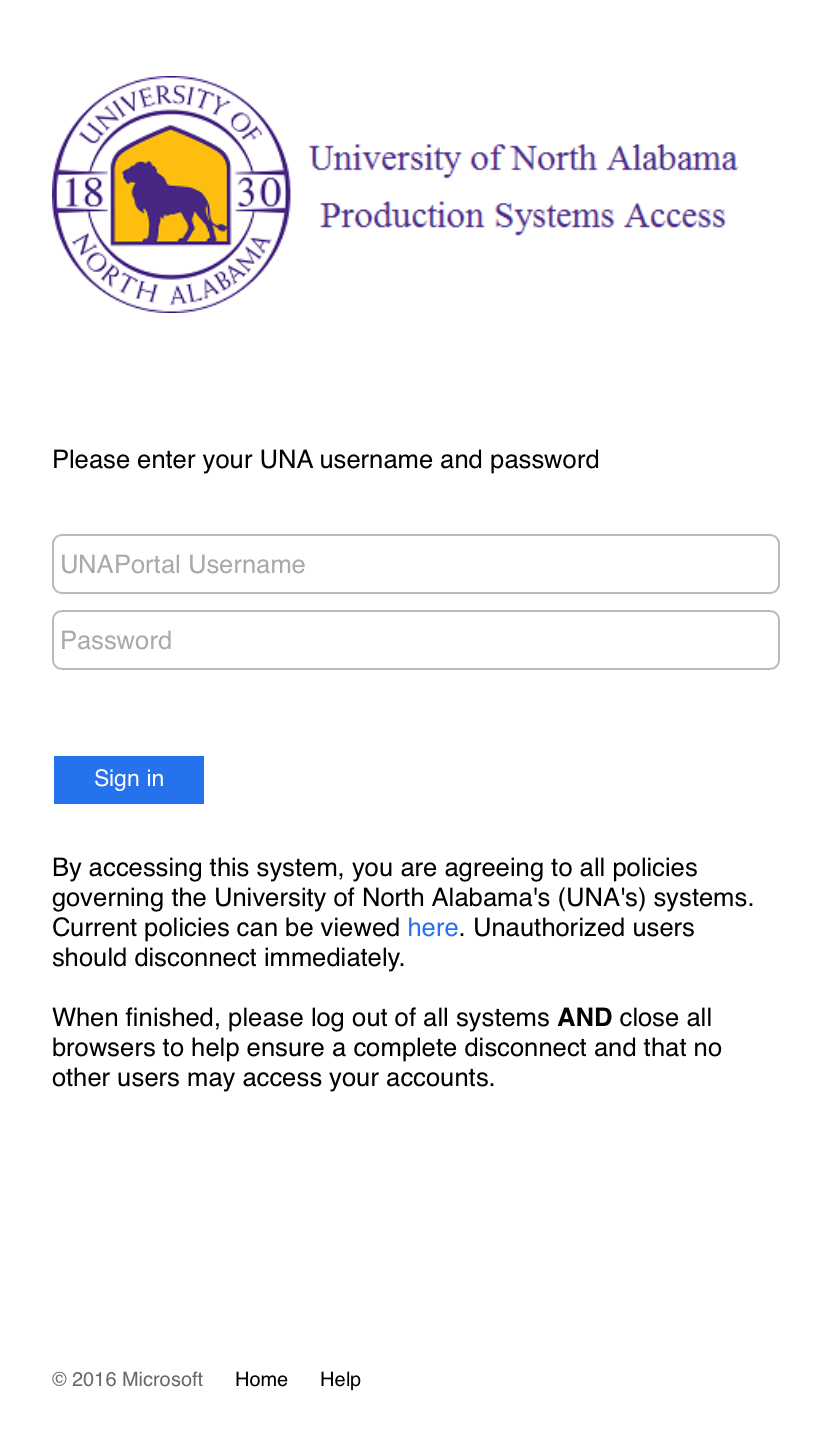
Log into una.login.duosecurity.com from your new phone using your UNA username and password.
Step 2 - Click Need Help
Click the "Need help" link in the lower left part of the screen.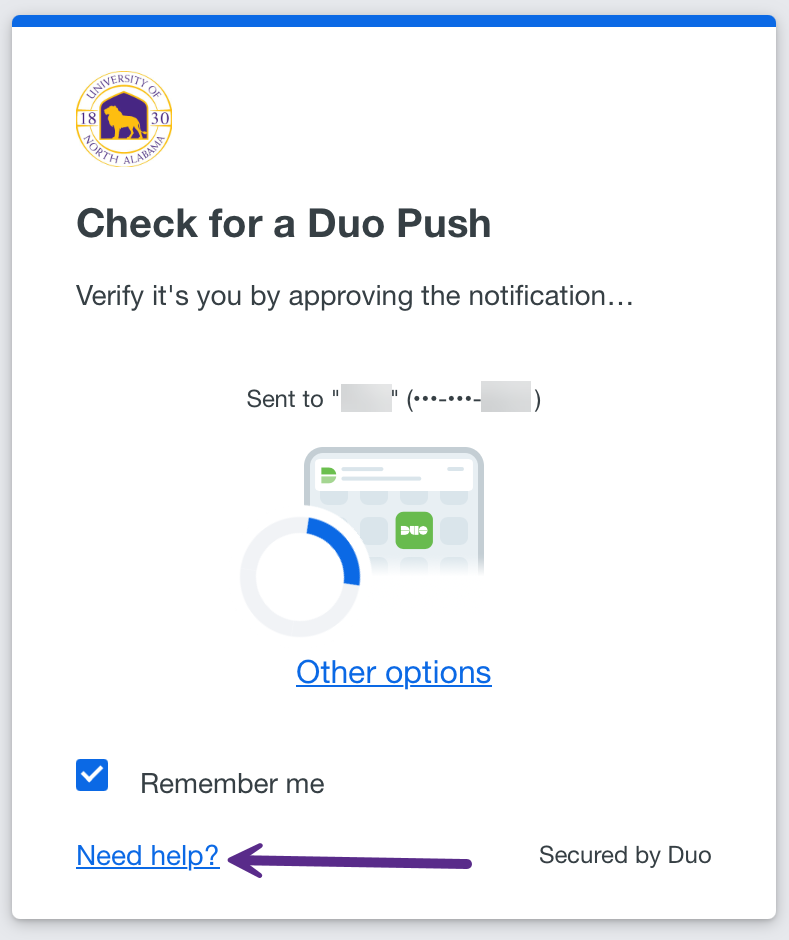
Step 3 - Manage Devices
In the "How can we help?" window, click on the "Manage devices" link found in the "I need to manage devices" section. You will be prompted to verify your identity before managing your devices.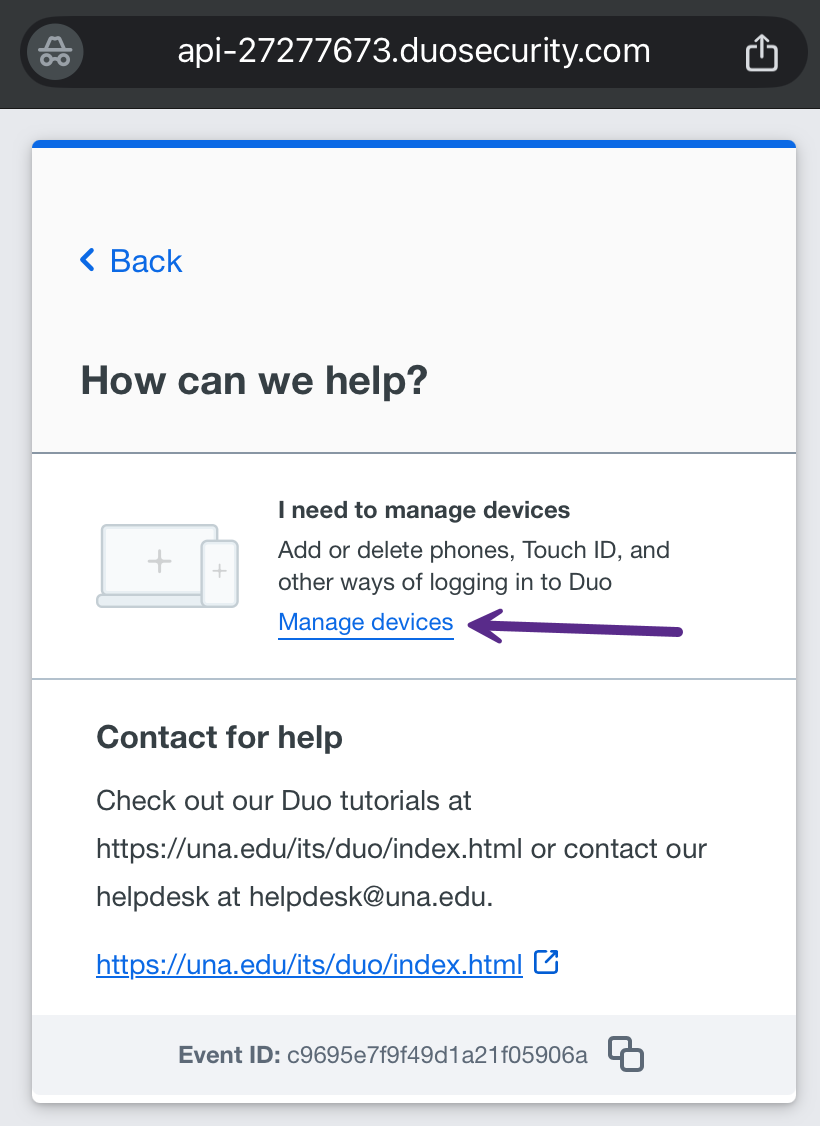
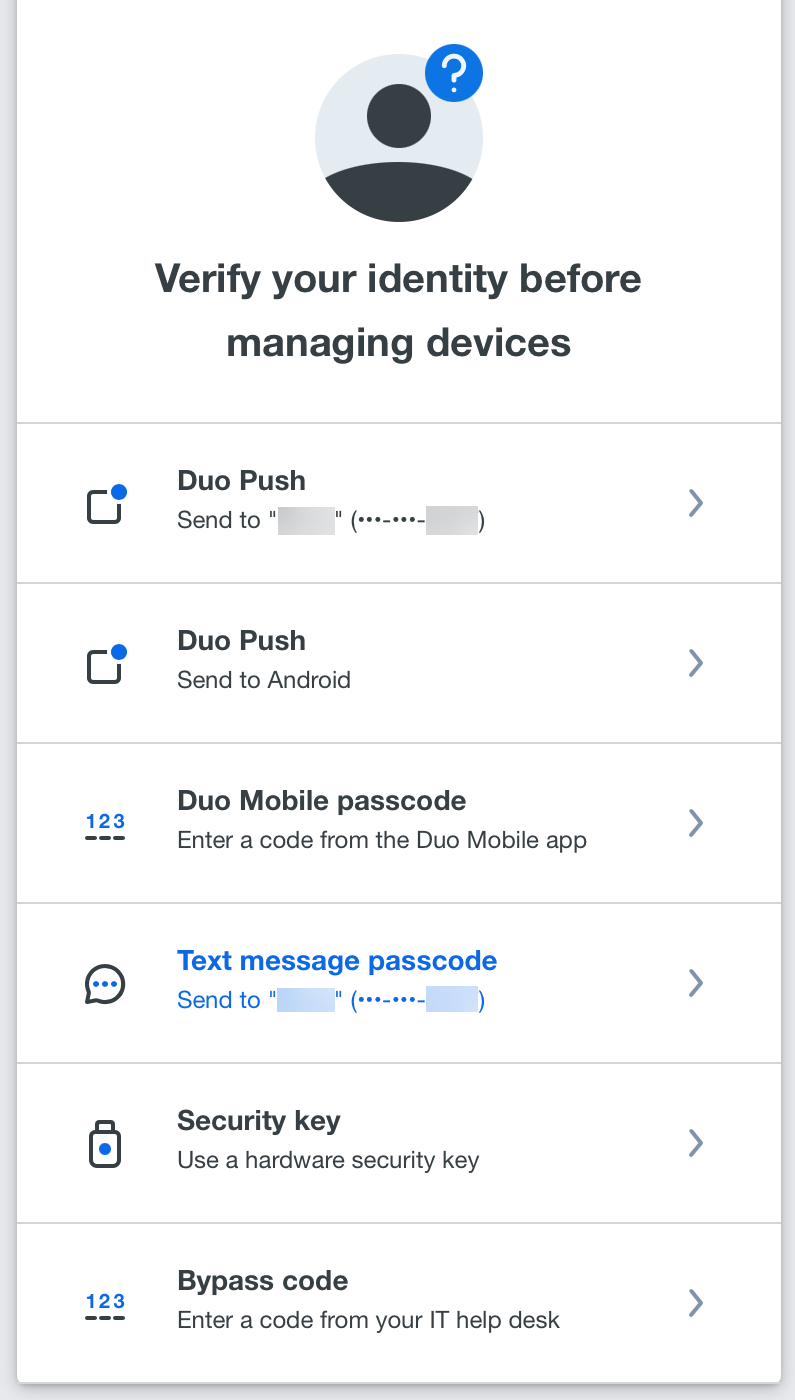
Step 4 - "I have a new phone" link
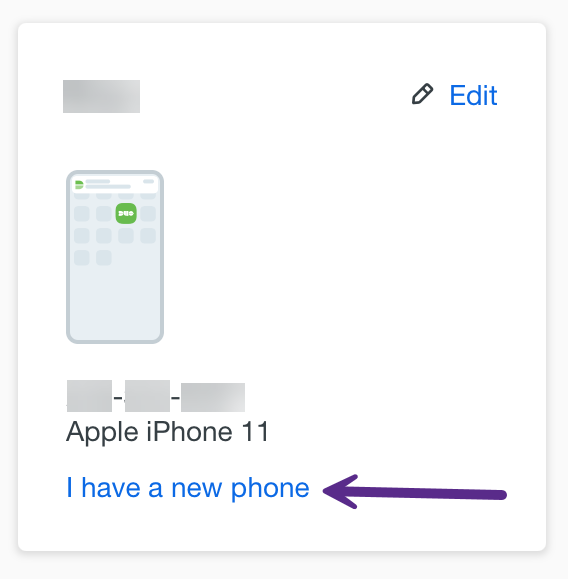
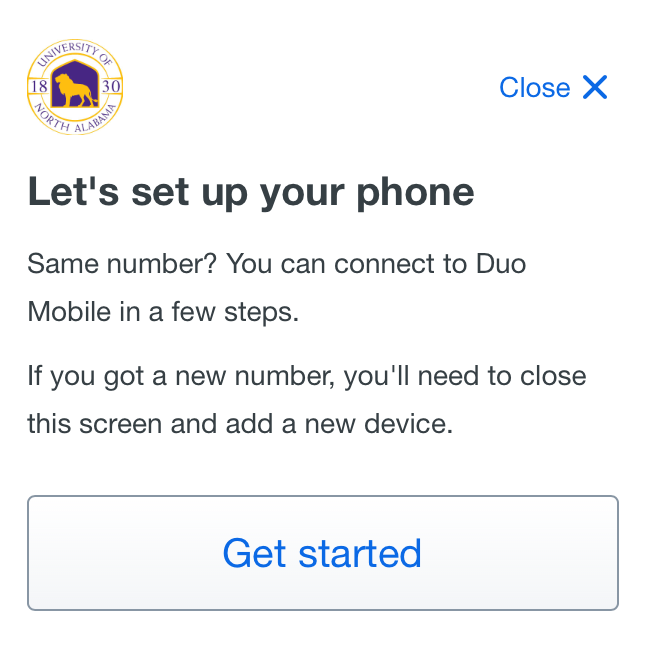
Locate your phone in the list of devices on your account and click on the "I have a new phone" link." Click the "Get started" button on the next screen to connect your new phone to Duo Mobile.
Step 5 - Confirm phone number/Send me a Passcode
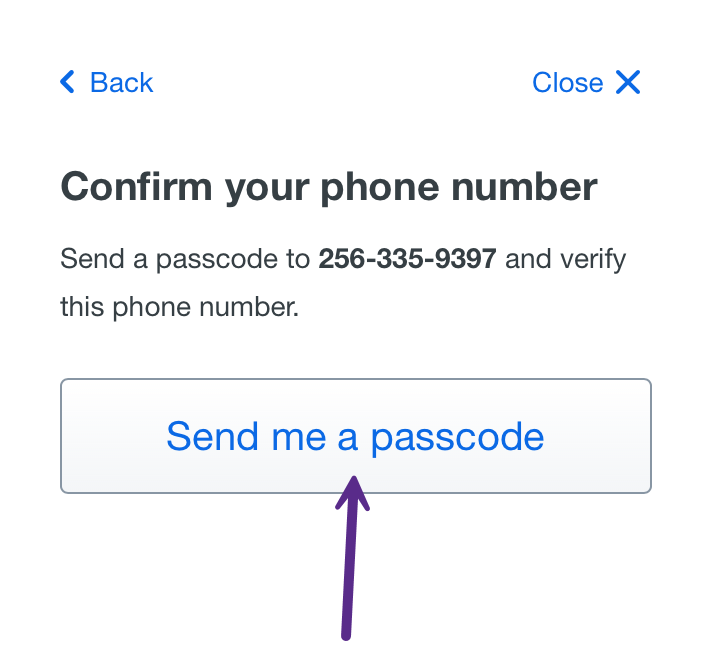
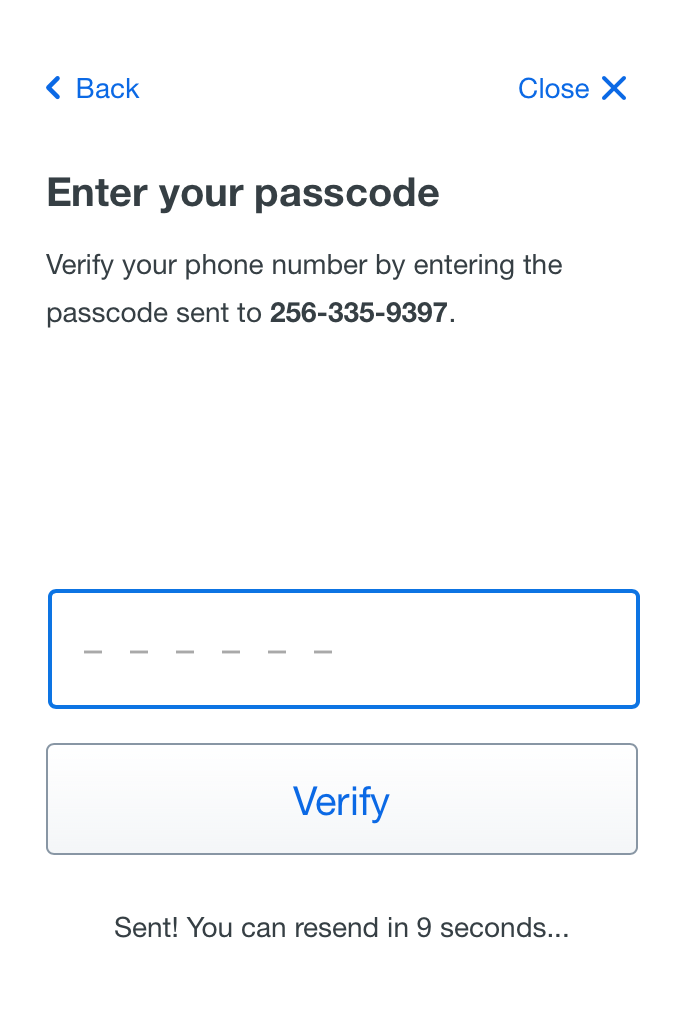
Click the "Send me a passcode" button to have a passcode sent to the existing phone number on your Duo account. In the next window, enter the 6-digit passcode you received via text message.
Step 6 - Download Duo Mobile
Download the Duo Mobile app on your Apple or Android smartphone. You can search for the app in your device's app store. The window also contains links to the app store page (Apple Store and Google Play) to help you identify the correct app. Once the app is installed, click on the "Next" button to continue.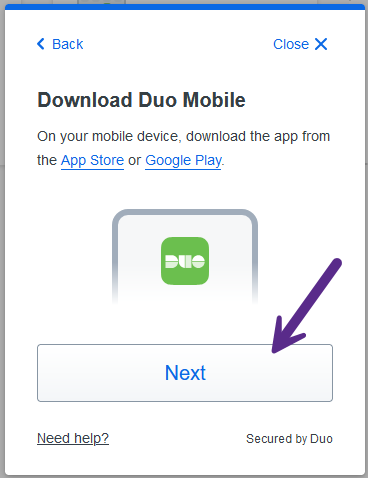
Step 7 - Open Duo Mobile / Get an activation link instead
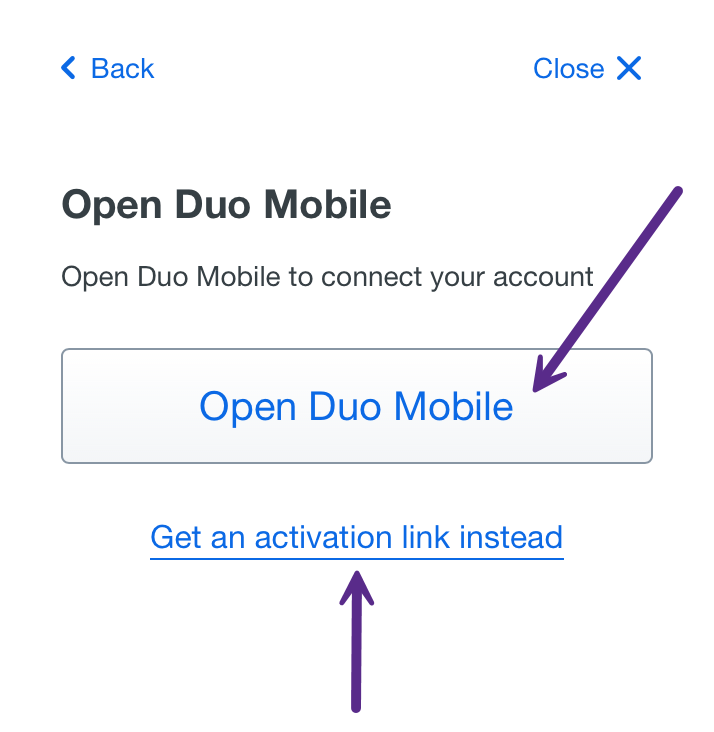
Click on the "Open Duo Mobile" button to open the Duo Mobile app to activate your account. You can also click the "Get an activation link instead" link to get a Duo activation link.